Orra Key User Manual
Version 1.0.0 • © 2026 Orra Audio LLC
Welcome
Orra Key is a free key detection plugin. Put it on a track or on the master, press play, and within a few seconds it names the key of what it hears: the key itself, its relative, the two codes DJ software uses for it, a MATCH percentage that says how sure it is, and the next most likely keys.
Then it puts the key to work. The chords of the key appear as tiles: click one to hear it, or drag it into your DAW and it lands as a MIDI clip named after the chord, at the session's tempo and time signature. Four borrowed chords from neighboring modes sit beside them for color. A transpose strip shows the key a sample would be in at every shift from −6 to +6 semitones, and MATCH TO lights the shift that puts it in your project's key. A clickable key wheel, a NOTES HEARD display and a tuning readout in cents complete the picture.
Orra Key never changes your audio. The track passes straight through with no latency, and the only sound the plugin ever adds is the short chord preview you hear when you click a tile.
This manual runs front to back. Getting Started covers the first two minutes, the Interface Tour names every part of the window, and Reading the Result explains what the numbers mean. Later chapters cover the key wheel, the chords, transposition, settings, and a few things worth knowing about how key detection behaves.
System Requirements
Formats
macOS: VST3, Audio Unit (AU), AAX (Pro Tools). Windows: VST3, AAX.
macOS
10.13 or later (Universal 2: Apple Silicon and Intel).
Windows
Windows 10 or later, 64-bit.
Channels
Mono or stereo, the same layout in and out. Both channels of a stereo track are analyzed together.
Latency
None. The audio passes straight through, and the analysis runs on its own background thread.
License
Free. Get a free license key at orraaudio.com/products/orra-key; one key activates up to 3 computers. Activation needs an internet connection once. Audio always passes through, even before activation.
Getting Started
1. Insert it
Orra Key is an audio effect. Insert it on the track you want to analyze: an audio track holding a sample or loop, an instrument track after the instrument, a bus, or the master to hear the whole mix. It hears whatever arrives at its slot, and it needs no MIDI.
2. Activate it (first time only)
The first time you open the window, a panel covers it: Orra Key is free, grab your free license key to unlock it. Click Get Your Free Key to open the Orra Key page and get a key at no cost. Then click Enter License Key, paste the key and click Activate. When the box reads "License activated, enjoy Orra Key!" the panel closes. Every Orra Key already open on that computer follows within a second or so.
Until activation the track still plays normally: only the analysis and the window wait for the key. "Where's my license key?" in the activation box opens the Orra Audio FAQ.
3. Press play
Start playback. The LISTEN key glows with the incoming level, the status line reads LISTENING, and the key appears after a few seconds of tonal audio. While the word "settling" follows the MATCH percentage, the answer can still change; it goes away once about 9 seconds of tonal audio has been heard. Let a loop cycle a couple of times for a firm read.
Whenever playback starts after the transport has been stopped for 2 seconds or more, Orra Key starts a fresh listen by itself. So you can audition sample after sample on one track: stop, swap the sample, play. Stop and restart within 2 seconds and the result is kept. CLEAR does the same fresh start by hand at any time.
4. Use the key
From here: click a chord tile to hear it, drag it into the arrangement for a MIDI clip, choose your project's key under MATCH TO to see how far to pitch the sample, or click a key on the wheel to work in a key of your own choosing.
The license panel
Click the ORRA KEY wordmark at the top left at any time. The panel shows the version, the license status, who it is licensed to, the activations used, and Deactivate, which frees this computer's activation so the key can be used on another one. You can activate again later with the same free key. Below are links to the website, support, this manual and Orra Audio's social pages. If the license server cannot be reached, Orra Key stays activated offline.
Interface Tour
The window is a midnight-blue brushed-metal plate in four rows: the header, a row of three displays (the key card, the key wheel and NOTES HEARD), the chords card, and the transpose card. Hover over anything for a tooltip.
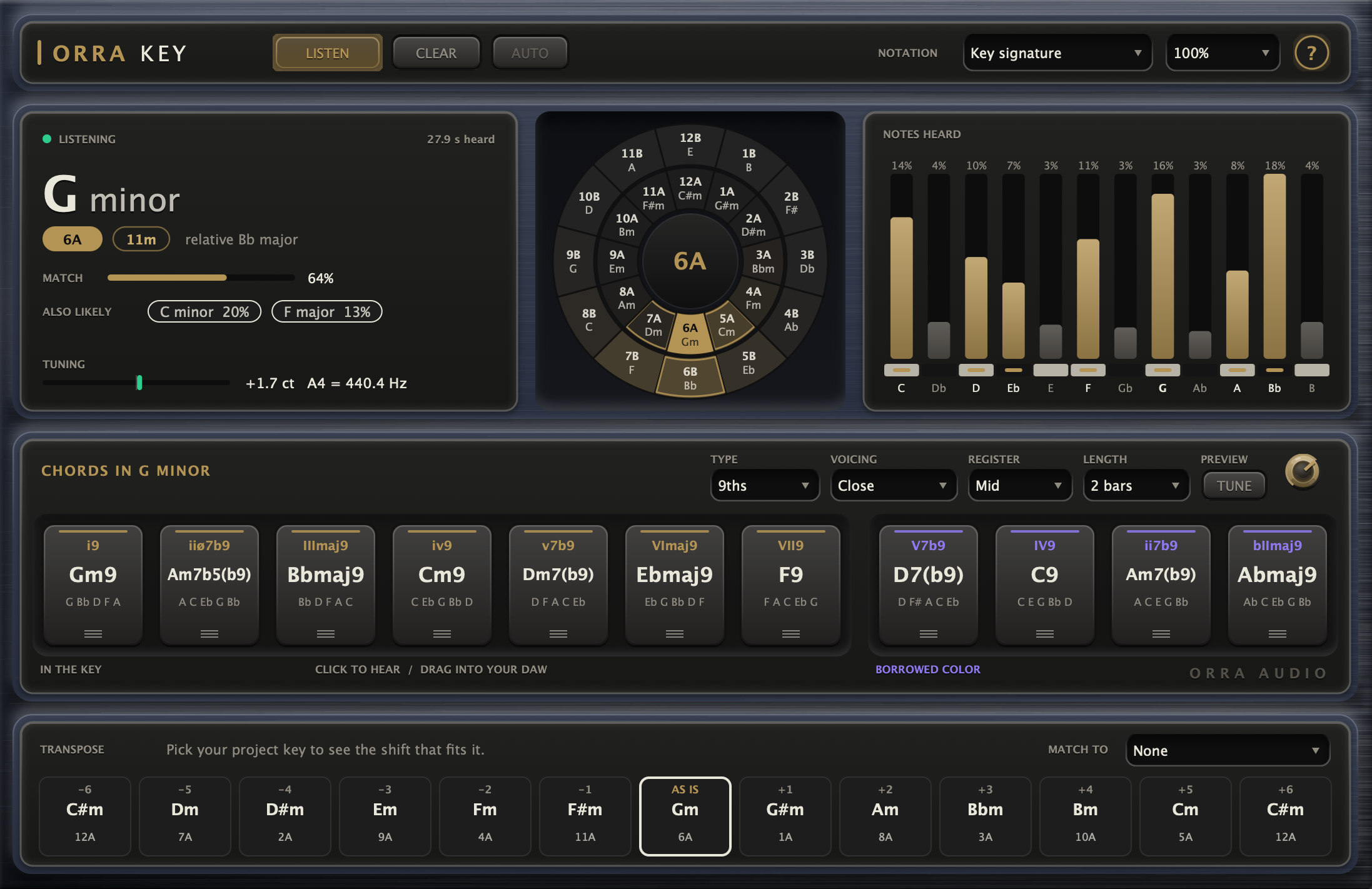
1. Header
On the left, the ORRA KEY wordmark: click it for the license and info panel. Then three keys: LISTEN (lit while Orra Key is analyzing, glowing with the incoming level), CLEAR (start a fresh analysis) and AUTO (lit when you have picked a key yourself; click it to go back to the detected key). On the right: NOTATION (how note names are spelled), the UI scale menu (75 to 200 %) and the round ? key, which turns the tooltips on and off. Right-click it to choose their language.
2. Key card
The result. A status line (LISTENING, PAUSED or MANUAL KEY, with the seconds of audio heard), the key name in large type, its two codes and its relative key, the MATCH bar, the ALSO LIKELY chips and, at the bottom, TUNING.
3. Key wheel
All 24 keys in two rings, majors outside and minors inside, shaded by how likely each one is. The key in use is solid gold and its code fills the hub. Click any key to use it.
4. NOTES HEARD
Twelve bars, C to B: how much of each note has been heard. Gold bars are notes of the key's scale.
5. Chords card
Titled with the key, for example CHORDS IN G MINOR. Along the top: TYPE, VOICING, REGISTER, LENGTH, and under PREVIEW the TUNE key and the level knob. Below them, seven gold tiles IN THE KEY and four violet BORROWED COLOR tiles. Click to hear, drag into your DAW.
6. Transpose card
Thirteen cells from −6 to +6 semitones with AS IS in the middle: the key the sample would be in after each shift. MATCH TO at the right takes your project's key, and the line beside TRANSPOSE then tells you how far to shift.
Before the first key arrives, the key card shows "--" and the chords and transpose cards show a short hint. You do not need audio to explore: click a key on the wheel and its chords appear.
Reading the Result
The key card, top to bottom.
| Readout | Meaning |
|---|---|
| Status line | LISTENING while LISTEN is on (the dot turns green while audio is arriving), PAUSED when it is off, MANUAL KEY when you have picked a key. At the right, the seconds of tonal audio heard since the last fresh start. Silence and noise-like sound are not counted. |
| Key | The key that fits everything heard so far, for example G minor, spelled as set under NOTATION. |
| Codes | The gold pill is the key wheel code: a number from 1 to 12, plus A for minor or B for major (C major is 8B, A minor is 8A). The outlined pill is the same key in the d/m code used by some DJ software (C major is 1d, A minor is 1m). Use whichever your DJ software shows. |
| Relative | The relative major or minor: the same notes and the same chords, with a different home note. G minor's relative is Bb major. |
| MATCH | How sure Orra Key is of the scale, as a bar and a percentage. It counts the key and its relative together, because they share every note. It is calibrated against labeled loops, so read it as a hit rate: a result this sure gets the scale right about that often. "settling" follows the number until about 9 seconds of tonal audio has been heard; until then the answer can still change. |
| ALSO LIKELY | Up to two more keys from other scales, each counted the same way as MATCH (key plus relative), so MATCH and the chips never add up to more than 100 %. Keys under 3 % are not shown. Click a chip to use that key instead. |
| Hint | "Sounds like one note: F" means one note makes up more than half of everything heard (an 808, a bass one-shot). "Sounds like one chord: Dm" means one triad makes up most of it. With so little to go on, the key is a best guess, and the note or chord is the solid fact. |
| TUNING | How far the material sits from standard A440 tuning, in cents, and the A4 it implies (for example +4.6 ct, A4 = 441.2 Hz). The meter spans 50 cents either way and turns green within 5. Detune your synth by the same amount, or pitch the sample back, so everything sits together. |
How Orra Key listens
Orra Key measures the pitched content of the track, roughly 30 Hz to 2.5 kHz, with both stereo channels combined, and works out how much of each of the twelve notes it hears. It scores all 24 major and minor keys against that balance and names the best fit. The tuning offset is estimated from the same notes and taken into account first, so a detuned sample is not misread. Every second of tonal audio since the last fresh start counts the same, so the answer firms up the longer a loop plays. Chord previews are mixed in after the analysis has taken its copy, so clicking tiles never changes the key.
The Key Wheel
The key wheel lays out all 24 keys so that neighbors are musically close. It is the same numbering DJs use for harmonic mixing, and it is also a fast way to pick a key by hand.
| On the wheel | Meaning |
|---|---|
| Outer ring | The 12 major keys, codes 1B to 12B. |
| Inner ring | The 12 minor keys, codes 1A to 12A. Each sits under its relative major: 8A (A minor) under 8B (C major). |
| Order | 12 at the top, like a clock. One step clockwise is up a fifth (8B C major, 9B G major, 10B D major), one step counter-clockwise is down a fifth. |
| Shading | Brighter keys are more likely. Shown while Orra Key follows the detection. |
| Solid gold | The key in use, detected or picked. Its code is repeated in the hub. |
| Gold outline | Keys that mix cleanly with it: one step either way around the same ring, and its relative in the other ring. |
| White outline | The key the transpose strip is showing, when a shift is selected. |
| Blue dot | Your MATCH TO key. |
Picking a key
Click any key on the wheel to use it. The key card says MANUAL KEY, the chords, the NOTES HEARD colors and the transpose strip follow your choice, and AUTO lights. Use this when you know better (the song is in A major and the loop leans minor), to work in the relative key, or with no audio at all, to explore the chords of any key. Clicking an ALSO LIKELY chip does the same.
The analysis keeps listening underneath: in place of MATCH the key card shows "Detected: ..." with what it still hears, and ALSO LIKELY is hidden. Click AUTO to go back to the detected key.
NOTES HEARD
Twelve bars, C to B. Each bar's height is relative to the loudest note, and the percentage above it is that note's share of everything heard. Gold bars are notes of the scale of the key in use (major, or natural minor for a minor key), and the rest are gray. The keyboard strip below marks the scale notes in gold, and the key's home note is printed in bold. Note names follow NOTATION.
NOTES HEARD always shows the audio as it plays, not the transposed view. A tall gray bar is worth a look: a borrowed chord, a bent blue note, or a sign that another key fits nearly as well (check ALSO LIKELY).
Chords of the Key
The chords card shows eleven tiles for the key in use: seven gold tiles IN THE KEY and four violet tiles of BORROWED COLOR. Its title names the key (CHORDS IN G MINOR), and adds the shift when the transpose strip has one selected (CHORDS IN A MINOR, SAMPLE +2).
Reading a tile
At the top, the Roman numeral: the chord's step in the key. Upper case is major, lower case is minor, ° is diminished, ø half-diminished, + augmented, and 7ths and 9ths add their number (V7, Imaj7). Below it, the chord name (Gm, Adim, Bb) and the notes it plays, low to high, spelled the way the chord is written: D7 reads D F# A C, never D Gb A C. The three short lines at the bottom are the drag grip. Hover a tile for its notes in the tooltip.
Click to hear, drag into your DAW
- Click and hold a tile to hear the chord on a soft electric-piano voice. It sustains while you hold and rings out when you let go. The tile glows with the sound and fades with it. Clicking another tile takes over at once.
- Drag a tile (hold and move a few pixels) and it becomes a MIDI clip: drop it on a track in your DAW.
In the key
The seven chords built by stacking thirds on each step of the key's scale. In a major key: I, ii, iii, IV, V, vi, vii°. In a minor key (natural minor): i, ii°, III, iv, v, VI, VII.
Borrowed color
Four chords from outside the key that producers reach for all the time. They come from a neighboring mode, so they sound like a change of light rather than a wrong note.
| Key | Borrowed chords | Where they come from |
|---|---|---|
| Major | bVI, bVII, iv, III C major: Ab, Bb, Fm, E | bVI, bVII and iv from the parallel minor. III is the major chord that leads into vi, the relative minor. |
| Minor | V, IV, ii, bII A minor: E, D, Bm, Bb | V from harmonic minor (the dominant with a leading tone). IV and ii from dorian. bII from phrygian. |
A borrowed chord keeps its own accidental: bVI in G major is Eb, not D#. With 7ths or 9ths, a borrowed chord is extended within the scale it comes from, so V7 in A minor is E7 (E G# B D).
Chord Options & MIDI Clips
The controls along the top of the chords card shape both what you hear and what you drag.
| Control | Options | What it does |
|---|---|---|
| TYPE | Triads / 7ths / 9ths default Triads | Plain triads, 7th chords or 9th chords, all built from the key's own scale. |
| VOICING | Close / Smooth / Open / + Bass default Smooth | Close: root position, stacked up from the root. Smooth: the inversion that sits nearest the middle of the register, so chords played or dragged one after another barely move. Open: spread out, a triad becomes root, fifth and the third an octave up, and a 7th or 9th chord drops its second-highest note an octave. + Bass: Close plus the root an octave lower. |
| REGISTER | Low / Mid / High default Mid | How high the chords sit: around the octave that starts at MIDI note 48, 60 (middle C) or 72. |
| LENGTH | 1 bar / 2 bars / 4 bars default 2 bars | How long the dragged clip is, in bars of your session's time signature. |
| PREVIEW knob | −36 to 0 dB default −12 dB | Volume of the chord preview. It plays through this track's output. In the host it appears as Preview Level, the plugin's only parameter (not automatable). |
| TUNE | on / off default on | When lit, the preview follows the detected tuning so it sits with the sample. Off: standard A440. MIDI clips are plain MIDI notes either way, so tune your instrument with the TUNING readout. |
What lands in your DAW
- A standard MIDI file with one track. Every note of the chord starts at the top of the clip and is held for its full LENGTH, at velocity 100, with the voicing and register you chose.
- The clip carries the session's tempo and time signature: in a 3/4 session, 2 bars is two bars of 3/4. If the host reports no tempo, 120 BPM in 4/4 is used.
- The file is named after the chord (Am7.mid), so most DAWs name the new clip after the chord too.
- Drop it on an instrument track, or wherever your DAW accepts MIDI files. The files are written to a temporary folder that Orra Key tidies after ten minutes.
Building a progression
With VOICING on Smooth, drag I, V, vi and IV one after another onto the same track. Every chord takes the inversion closest to the middle of the register, so the voices move by small steps without any editing.
Transpose & MATCH TO
The transpose card answers two questions: what key will this sample be in if I pitch it, and how far do I pitch it to fit my song? Orra Key itself never pitches the audio. Use your DAW's or sampler's transpose control with the numbers shown here.
The transpose strip
Thirteen cells, from −6 to +6 semitones, with AS IS in the middle. Each cell shows the shift, the key the sample lands in, and that key's wheel code. Between them they cover all twelve keys of the sample's mode (−6 and +6 land on the same key).
Click a cell to see that key's chords: the chords card switches to it and its title says, for example, (SAMPLE +2), and the wheel outlines that key in white. Now pitch the sample by the same amount and drag chords that already fit it. Click the cell again to go back to AS IS.
MATCH TO
Choose your project's key in the MATCH TO menu (each entry shows its wheel code, for example Bb minor (3A); None turns it off). Then:
- The cell whose key is your project key, or its relative, fills gold: that is the shift that fits.
- Cells that land on a neighboring key (one step around the wheel from your project key, in the same ring) are outlined in gold, and those usually sit well too.
- The line beside TRANSPOSE spells it out, for example "Shift +2 (or -10) to sit in C major". Both moves reach the same key, one up and one down, and the smaller one usually keeps the sample closer to its original character. When no shift is needed it says "Already in ..." or "Already fits ..." (as its relative).
- A blue dot marks the MATCH TO key on the wheel.
Why the relative counts
A minor sample can sit in a major song, and the other way round, as long as the notes agree. An A minor loop fits a C major song as is: the same notes, the same chords. So Orra Key keeps the sample's own mode and aims for the project key's relative when the modes differ. A G minor loop in a C major song: Shift +2, to A minor, C major's relative.
The strip and the chords follow the key in use: the detected key, or the key you picked on the wheel or from ALSO LIKELY. Picking a new key on the wheel resets the strip to AS IS.
Settings, Languages & Mouse
NOTATION
Key signature (the default) spells notes the way the key signature writes them: Bb in F major, A# in B major. Key names follow the usual convention (Db major, F# major, C# minor, Bb minor), every chord tone takes its proper letter (D7 is D F# A C), and C major and A minor write their accidentals as flats, because their borrowed chords are on the flat side (Bb, Ab, Fm). Sharps and Flats spell every note one way, to match a piano roll or a habit. NOTATION applies everywhere: key names, chord tiles, NOTES HEARD, the wheel, the transpose strip and the MATCH TO menu.
UI scale
75 % to 200 % in steps of 25, from the menu next to the ? key. The size is saved with the session. If a saved size is too big for the screen it opens at, the window steps down until it fits.
Tooltips & languages
The round ? key turns the hover tooltips on and off (on by default). Right-click it for TOOLTIP LANGUAGE: English, Dutch, Japanese, Spanish, Brazilian Portuguese, German or French. Picking a language also turns the tooltips on. Control names such as LISTEN or TUNING stay in English in every language, so the tips match the panel.
Saved with your session
LISTEN, NOTATION, the chord options and TUNE, the PREVIEW level, a key picked on the wheel, the selected transpose cell, MATCH TO, the UI scale and the tooltip settings. The analysis itself is saved too: a reopened project shows its key, wheel and notes without playing a note. The first play after reopening starts a fresh listen, as after any stop of 2 seconds or more.
Keyboard & mouse
| Click and hold a chord tile | Hear the chord; it rings out when you let go. |
| Drag a chord tile | Drop a MIDI clip of it into your DAW. |
| Click a key on the wheel | Use that key (MANUAL KEY). AUTO goes back to the detected key. |
| Click an ALSO LIKELY chip | Use that key instead. |
| Click a transpose cell | Show that key's chords; click it again to go back. |
| Drag the PREVIEW knob | Up or right for louder. Hold Shift for finer control. |
| Click the ORRA KEY wordmark | License and info panel. |
| Right-click ? | Tooltip language. |
Good to Know
Drum loops still get a key
Orra Key skips noise-like sound, but most drum loops still carry some pitch (toms, a tuned kick, an 808), so they get a key too. A low MATCH is the tell. If the one-note hint appears, that note is the useful fact.
Short fragments can fit several scales
A three-note bass line or a pentatonic vocal can belong to more than one key. Check ALSO LIKELY and NOTES HEARD, and if the rest of your song settles it, pick that key on the wheel.
A stop of 2 seconds starts a fresh listen
The analysis clears itself when playback starts after a stop of 2 seconds or more, even for the same loop (it settles again in a few seconds). Silence during playback never resets it, so a vocal with rests or a song with breaks is heard straight through. To keep a result as it is, turn LISTEN off: the readout freezes and nothing is cleared.
One key per listen
Everything heard since the last fresh start counts toward one answer. If a song changes key, press CLEAR at the new section, or stop and play from there.
Previews play through the track
Chord previews come out of this track's output, after Orra Key, so the track's fader and any later plugins affect them. If a preview is silent in Logic, select the track or start playback. A tile that does not glow when clicked means the host is not running the plugin at that moment.
Credits & Support
The key model blends two published key profiles: the Aarden profile, derived from the Essen folk-song collection (B. Aarden, Dynamic Melodic Expectancy, PhD dissertation, Ohio State University, 2003), which is strong on sparse material such as a vocal or a bass line, and the Bgate profile for electronic dance music from A. Faraldo, S. Jordà and P. Herrera, "A Multi-Profile Method for Key Estimation in EDM", AES International Conference on Semantic Audio, 2017, which is strong on full mixes. Orra Key uses the published profile values; the analysis itself is Orra Audio's own.
Orra Key is a free product of Orra Audio LLC. © 2026 Orra Audio LLC. For support, updates and documentation, visit orraaudio.com/support.